How To Configure a Failover
Use this guide to set up failover for your Master Console and Remote Nodes. Failover keeps monitoring running when a server is unavailable due to an outage, maintenance, or other interruption.
What Is PIM+ Failover?
When you purchase a PIM+ license, it includes the right to install a second copy of PIM+ on another machine to act as a failover server. The failover server periodically synchronizes with your primary installation and stores a local copy of your configuration.
There are two types of failover:
- Master Console failover — a standby server for your main PIM+ installation.
- Remote Node failover — a standby server for a remote node in a multi-site setup.
Why Configure a Failover Server?
Without a failover server, monitoring stops when the primary server is down for maintenance, an update, or a failure. For environments where continuous monitoring is critical, that can mean missed alerts and lost visibility until the primary server is back online.
A failover server can take over within seconds and continue monitoring until the primary installation is available again.
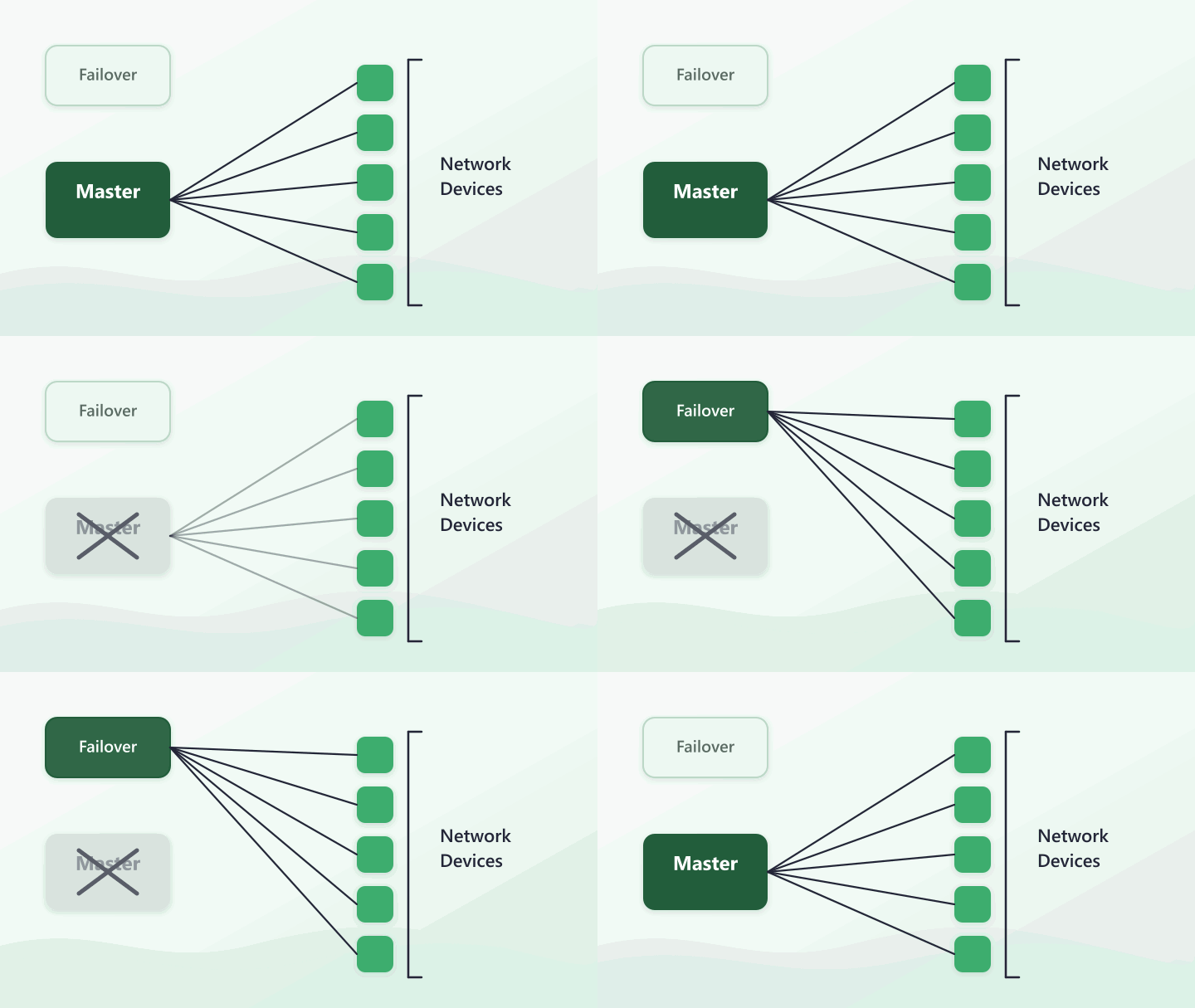
Configure Master Console Failover
Set up failover on a separate system from your primary Master Console.
Step 1: Install PIM+ on the failover server
- Run a clean PIM+ installation on the failover machine.
- Complete the setup as a Master Console (same installation type as your primary server).
Step 2: Enable failover mode
- Log in to the failover server.
- Go to Settings > Failover Settings.
- Check This installation is a failover server.
- Enter the URL of the primary server so the failover can synchronize with it.
- Enter the username and password of an account on the primary server. Use credentials from an account that is a member of a security group with the Failover Node role (configured under Login and Security Settings on the primary server).
Step 3: Set synchronization and heartbeat intervals
On the same page, configure:
- Synchronization interval — how often the failover server syncs configuration from the primary (in seconds).
- Heartbeat interval — how often the failover server checks whether the primary is still reachable (in seconds).
If the failover server cannot connect to the primary, you are notified and monitoring continues on the failover server.
Step 4: Understand failover and dormant mode
When the primary server is unavailable, the failover server takes over and a banner shows when the last connection to the primary was established.
When the primary comes back online, the failover server returns to dormant mode and resumes checking the primary. Data collected during failover is retained on the failover server and remains accessible by logging into that instance.
Configure Remote Node Failover
In multi-site mode, if a remote node goes down you receive an alert, but you will not get data from that site until contact is restored. Remote node failover avoids that gap.
Remote node failover works the same way as Master Console failover, with a few extra requirements during installation.
Step 1: Install the remote node failover
- Run the PIM+ installer on the failover machine.
- Select Remote Node as the installation type.
- On the configuration screen, check This installation is a failover node.
- Enter the exact same site name as the primary remote node.
The failover remote node receives the same event monitors, devices, and data as the original remote node.
Step 2: Failover behavior
If the primary remote node is unavailable, the failover remote node takes over monitoring. When the primary remote node is back online, the failover returns to dormant mode.
You can configure a failover instance for each remote node in your multi-site installation.
Master Console and Remote Node Failover Together
In a multi-site setup, if the Master Console goes down, monitoring transfers to the Master Console failover server. Remote nodes then call home to the failover Master Console instead of the primary.
Monitoring and data collection continue on the failover server, including updates from remote nodes, until the primary Master Console is available again. Remote nodes automatically reconnect to the primary once it is back online.
Lost Contact Settings
Configure notifications so your team knows when failover events occur.
Master Console notifications
On the Master Console, go to Settings > Lost Contact Settings. Configure alerts for:
- When the Master Console enters or exits failover.
- When contact is lost or re-established with the failover server.
These settings are important: they are how you are notified if the failover server itself goes down.
Remote node notifications (multi-site)
In multi-site mode, additional options appear under Settings > Lost Contact Settings on the Master Console:
- Lost and regained contact with remote nodes.
- Remote node failover events.
You can receive notifications by email, phone call, SMS, or a combination. Separate multiple email addresses or phone numbers with commas.
With failover configured, monitoring can continue seamlessly through outages, updates, and maintenance on your Master Console and remote nodes.