How To Setup Microsoft Teams Integration
About Microsoft Teams
Microsoft Teams is a team coordination tool. By setting up Incoming Webhook Connectors, notifications can be sent directly to Microsoft Teams channels. This set of steps will help you integrate your PIM+ installation with Microsoft Teams.
Older Method: Adding an Incoming Webhook Connector (Support Ending)
Previously, you would use a webhook connector to integrate Microsoft Teams with PIM+. Microsoft plans to remove support for this method near the end of 2025 in favor of using a workflow. This article will show you the new method. Users who are currently employing webhooks to integrate PIM+ with Teams should switch to the method outlined here as soon as possible for continued support.
Workflow Method (Recommended)
The following is the preferred method for connecting one or more apps to your Teams account. Users should switch to this method before Microsoft Teams completely disables the webhooks method later this year.
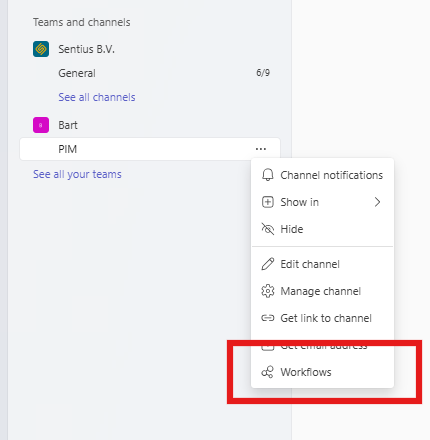
Step 1: Open Microsoft Teams and click on the "..." icon next to the Teams channel you want to edit. Select "Workflows".
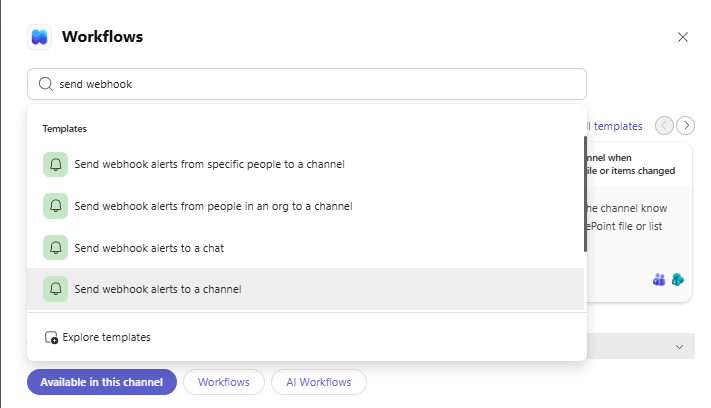
Step 2: This will open a chooser menu with existing workflows, a search bar, and a few other options. Use the search bar to search for "Send webhook alerts to a channel"or "Stuur webhookwaarschuwingen naar een kanaal" and select it
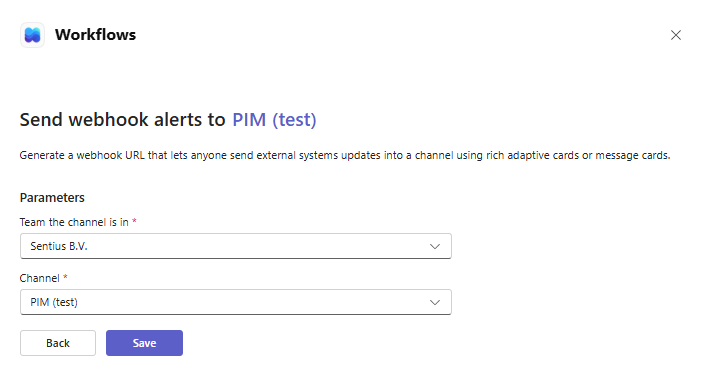
Step 3: Here you must set the team and channel where you want to receive the notifications. After that, click "Save".
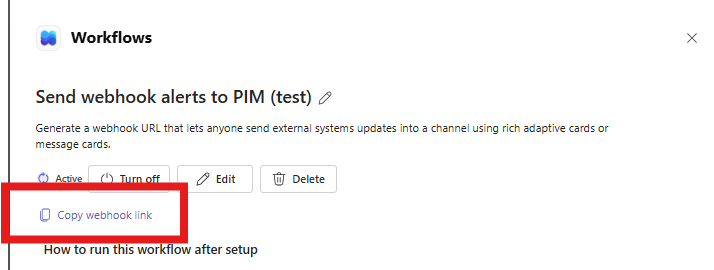
Step 4: Copy the link, it will need to be added to PIM+ later. Make sure the workflow is active; if not, start the workflow.
Steps within PIM+
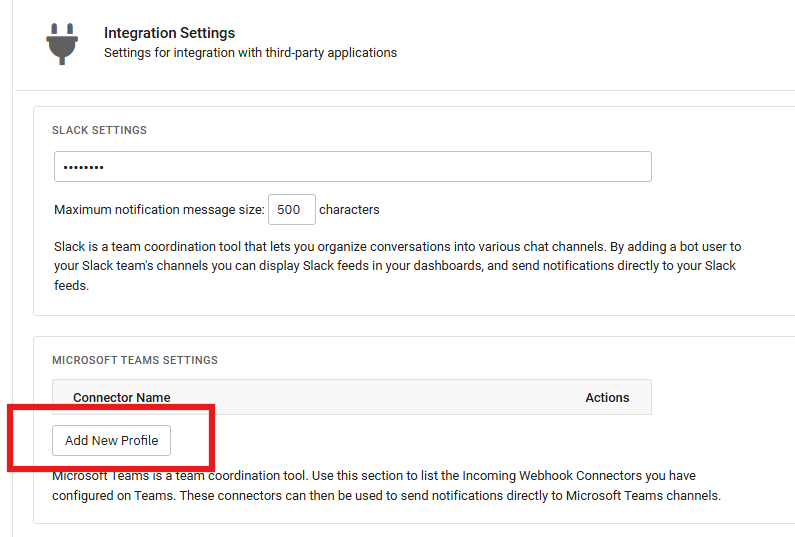
- Go to PIM+ > Settings > Integration Settings section. Under "Microsoft Teams Settings", click Add New Profile.
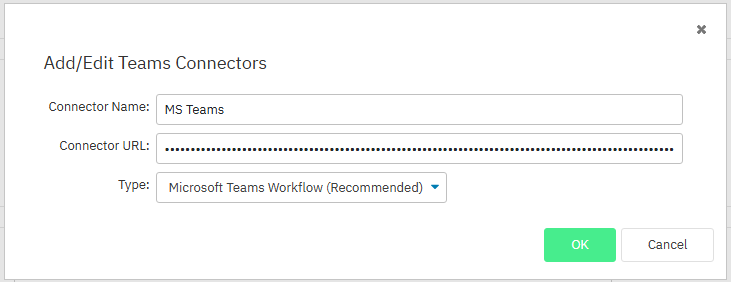
- Give your profile a name and add the link you copied in step 5 in the "Connector URL" field. Under "Type", leave it as the recommended value, "Microsoft Teams Workflow".
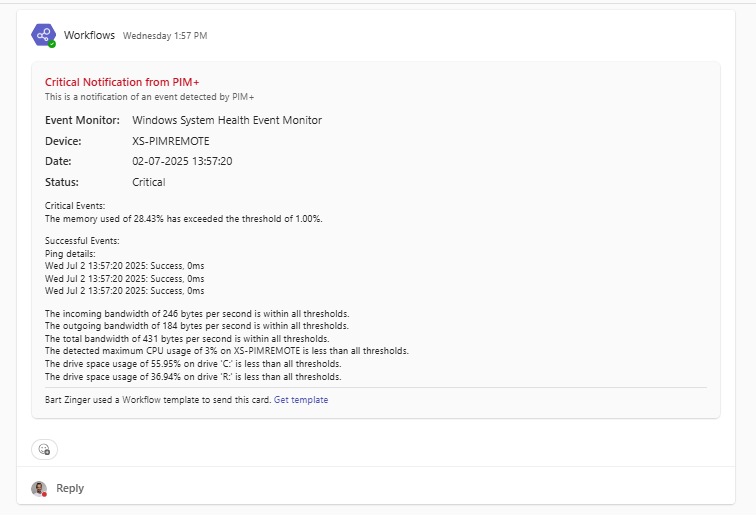
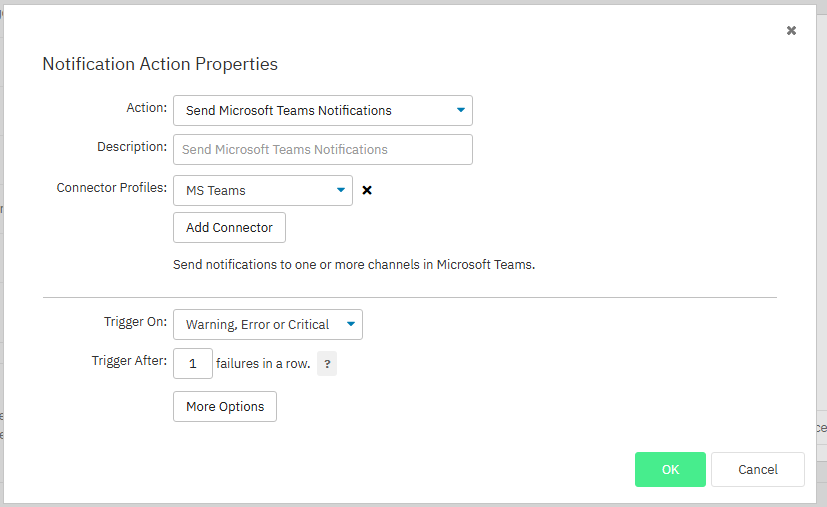
- Your new profile will now appear in the list of connector profiles. Now, any profile with the Microsoft Teams notification action can be selected in the settings of an event monitor and alerts will appear in your Microsoft Teams channel.
Result